
Smartphones have made it easier than ever to take high-quality photos and videos. The downside is that your phone’s storage can fill up quickly, especially when you record long videos or keep years of photos.
Moving photos and videos to a computer is a simple way to create backups, free up storage, or edit your files on a larger screen.
You do not necessarily need a USB cable to do it. Several ways let you send photos and videos from your phone to your computer, including cloud storage, wireless sharing, and browser-based file transfer.
Why Transfer Photos and Videos to a Computer?
There are several reasons you might want to move media files from your phone to a computer.
Free up phone storage
Photos and especially videos can consume a significant amount of storage. Moving older files to your computer can help you keep your phone organized.
Edit photos and videos
A computer generally provides a larger screen and access to more editing tools, making it easier to work with large collections of media.
Create a backup
Keeping an additional copy of important photos and videos on a computer can provide another layer of protection against accidental deletion or device problems.
Share files more easily
Large videos can sometimes be inconvenient to send through messaging apps. Transferring them to a computer gives you more options for storing and sharing them.
How to Send Photos From Your Phone to Your Computer Without a Cable
If you do not have a USB cable available, you can use a wireless file-transfer service.
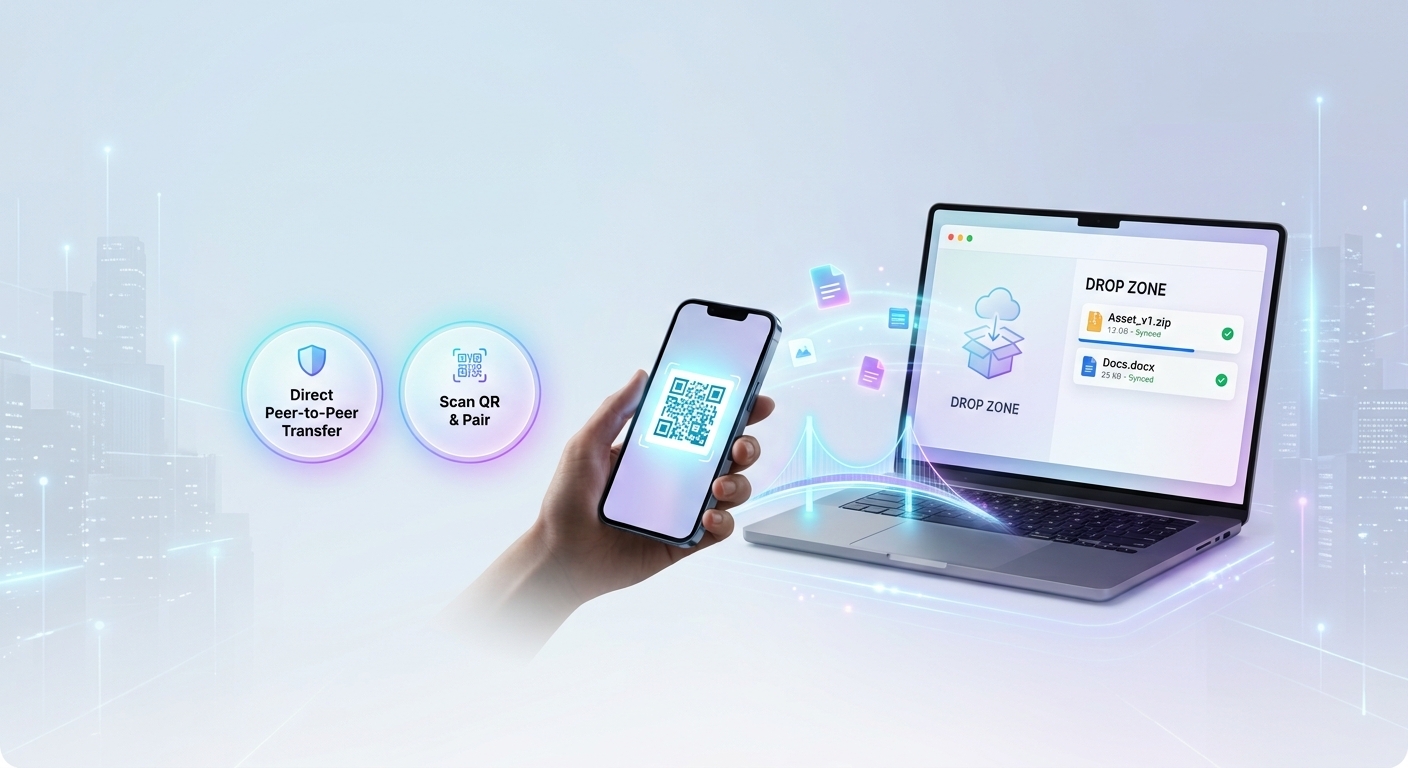
One option is NoWireConnect.xyz, a browser-based service that allows you to connect your phone and computer using a QR code or a connection code.
The process is simple:
- Open No Wire Connect on your computer.
- Open the service on your phone.
- Scan the QR code displayed on the computer.
- Connect the two devices.
- Select the photos or videos you want to transfer.
- Send the files to your computer.
Because the connection is initiated through a web browser, you can use it without relying on a traditional USB connection.
Transfer Photos From iPhone to a Computer
iPhone users have several options for transferring photos.
Apple’s ecosystem includes tools such as iCloud and AirDrop, while Windows users can also use other transfer methods.
If you only need to move a few photos or videos, a browser-based solution can be convenient.
With NoWireConnect, you can open the service on your iPhone and computer, scan the QR code, and use the connection to transfer your selected files.
This can be particularly useful when the destination computer is a Windows PC and you want an alternative to connecting your iPhone with a cable.
Transfer Photos From Android to a Computer
Android phones also provide multiple ways to move photos and videos.
You can use:
- Google Photos or other cloud services
- Bluetooth
- USB
- Local wireless transfer tools
- Browser-based file-transfer services
For occasional transfers, using a browser can be convenient because you can avoid installing another application.
Open NoWireConnect on both devices, scan the QR code, and transfer the photos or videos you need.
How to Transfer Large Videos
Videos can be significantly larger than photos, so the transfer method matters more when working with large files.
Before starting a large transfer, consider the following:
Check your connection
A stable connection can help prevent interruptions during a transfer.
Make sure your computer has enough storage
High-resolution videos can take up substantial storage space. Check available space before transferring a large collection.
Transfer smaller groups
If you have hundreds of videos, transferring them in smaller batches can make it easier to identify and troubleshoot any failed transfers.
Keep the devices active
Depending on the transfer method, allowing either device to go to sleep can interrupt the process.
Wireless Transfer vs. Cloud Storage
Cloud storage is one of the most common ways to move photos between devices. Your phone uploads the files to an online service, after which you can access them from your computer.
This works well when you want your files available across multiple devices.
However, if you simply want to move files from one device to another, uploading everything to the cloud may add an unnecessary step.
A direct browser-based transfer can be more convenient for some situations because the goal is simply to connect the phone and computer and move the selected files.
Wireless Transfer vs. USB
USB connections remain useful, particularly when transferring very large amounts of data.
However, wireless transfer has its own advantages:
| Wireless transfer | USB transfer |
|---|---|
| No cable required | Requires a compatible cable |
| Convenient for quick transfers | Useful for large transfers |
| Can work across different platforms | Often provides a direct connection |
| Easy to start from a browser | May require drivers or device permissions |
The best option depends on the amount of data and the devices involved.
Can You Transfer Files Between iPhone, Android, Windows, and Mac?
Yes. Cross-platform transfers are possible using several different tools.
For example, you may need to transfer:
- iPhone photos to Windows
- iPhone videos to Mac
- Android photos to Windows
- Android videos to Mac
- Documents from a phone to a computer
Services that work through a web browser can be useful for these situations because the phone and computer do not necessarily need to use the same operating system.
A Simple Alternative for Occasional Transfers
If you only need to transfer a handful of photos, videos, or documents, you may not want to install software or configure a complicated file-sharing system.
This is where a QR-code connection can be useful.
NoWireConnect lets you connect a phone and computer by scanning a QR code or entering a connection code. Once connected, you can use the service to transfer files between the devices.
It is free to try and can be useful when you want a quick alternative to traditional cable-based transfers.
Frequently Asked Questions
What is the easiest way to send photos from a phone to a computer?
The easiest method depends on your devices and how many photos you need to transfer. For a small number of files, wireless sharing or a browser-based transfer service can be convenient.
Can I send videos from my phone to my computer without USB?
Yes. You can use cloud storage, wireless sharing, Bluetooth, or browser-based file-transfer tools.
How do I transfer iPhone photos to Windows without a cable?
You can use services such as iCloud, wireless sharing methods, or a browser-based file-transfer service such as NoWireConnect.
How do I transfer Android photos to a computer wirelessly?
Cloud storage, Bluetooth, and wireless browser-based services are among the available options. NoWireConnect can connect the phone and computer through a QR code.
Do I need an app to transfer photos to my computer?
Not necessarily. Some services work directly in a web browser, so you can transfer files without installing a dedicated desktop application.
Conclusion
Transferring photos and videos from a phone to a computer does not have to involve a USB cable. Cloud storage, wireless sharing, and browser-based file-transfer services provide several alternatives.
For quick transfers between different types of devices, a QR-code connection can be particularly convenient. NoWireConnect provides a simple way to connect a phone and computer through a browser and transfer files without relying on a traditional cable.
Whether you are moving a few vacation photos, sending a large video, or backing up important documents, choosing the right transfer method can make the process considerably easier.